AI Room Design Apps From a Photo: A Decision Checklist
Compare AI room design apps from a photo with an eight-point checklist for room fidelity, keep-items, edits, privacy, cost, exports, and verification.
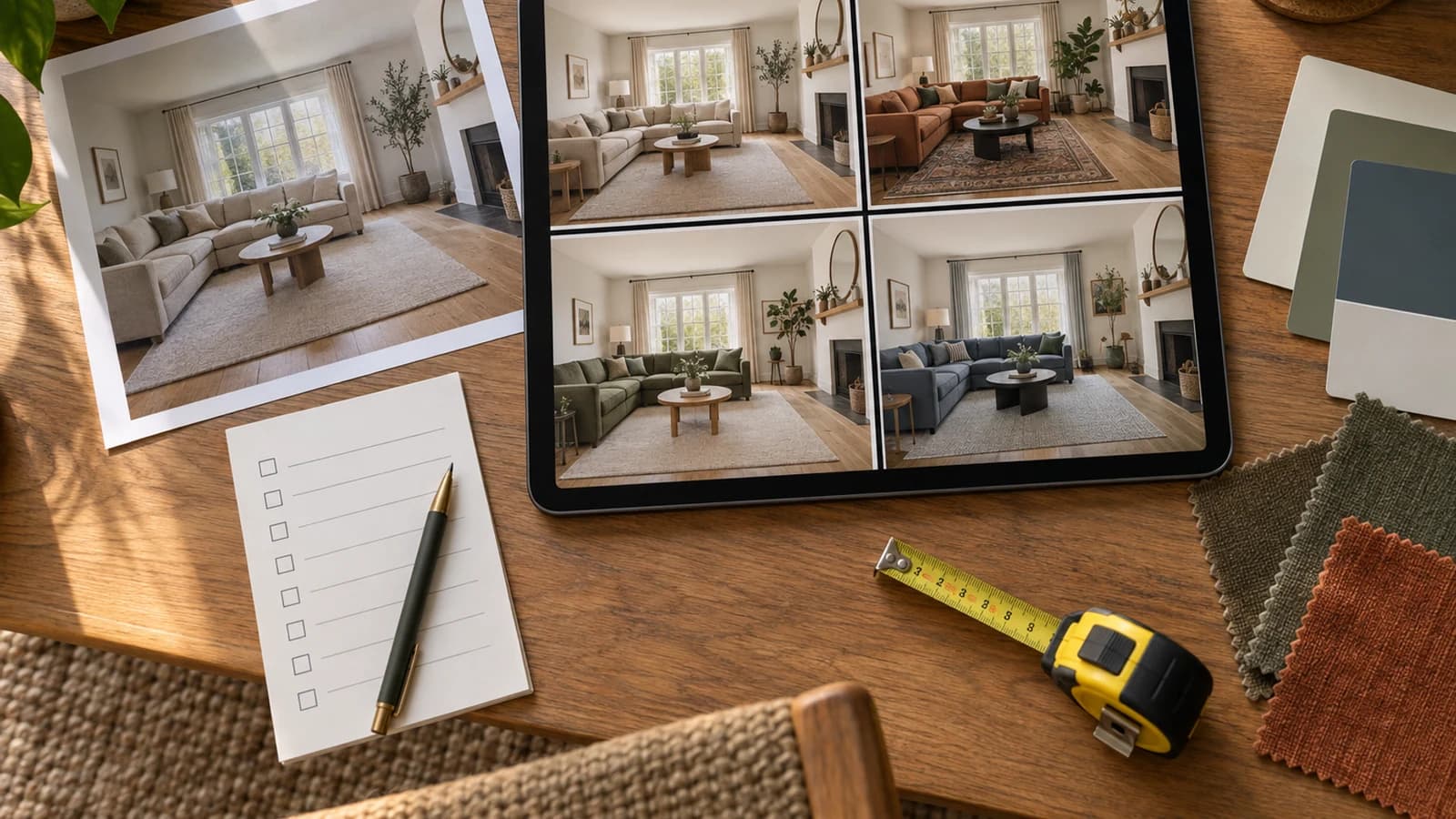
Choose an AI room design app from a photo by matching the tool to one job, then test it with the same room image. Check whether it preserves the room, respects keep-items, supports controlled edits, explains photo use, shows cost before commitment, and exports evidence you can act on. A realistic image alone cannot prove dimensions, construction, exact color, product identity, or fit. Use the checklist below instead of a best-app ranking.
Match the app to the job before you compare features
| Job | Useful tool type | Evidence you still need |
|---|---|---|
| Explore a design direction | Generative room preview from a photo | Source-photo comparison, measurements, samples, and product checks |
| See a known catalog item | Product-specific 3D or room visualizer | Current dimensions, displayed scale, finish, stock, delivery, and returns |
| Test a footprint or circulation | 2D or 3D planner with entered measurements | Field measurements, door swings, paths, comfort, and installation |
| Stage or market a property | Virtual-staging workflow with export controls | Disclosure rules, listing policy, rights, condition, and professional review |
The AI interior design from a photo guide covers capture, keep-items, prompts, comparison, and the measured handoff. Use this page when your next question is which app workflow supports that process.
Use this eight-point app checklist
| Check | Run this test | A useful result |
|---|---|---|
| 1. Input fit | Confirm whether the tool accepts a room photo, scan, floor plan, product image, or reference image | The accepted input matches the evidence you have |
| 2. Room fidelity | Compare windows, doors, ceiling lines, flooring, camera position, and major proportions | The result keeps every fixed feature required by your project |
| 3. Keep-items | Name one anchor item and inspect shape, position, color, and identifying details | The item remains recognizable enough for visual planning |
| 4. Controlled edits | Request one small change while preserving the rest | You can compare versions without losing the chosen direction |
| 5. Evidence type | Ask whether pictured objects are generated concepts, catalog models, or measured objects | The app states what the image can support |
| 6. Photo privacy | Read the current policy for processing, providers, retention, training, sharing, and deletion | The terms fit the sensitivity of your room photo |
| 7. Cost visibility | Check free limits, credit use, renewal, exports, watermarks, cancellation, and refunds | You can estimate the cost of your full comparison before paying |
| 8. Handoff | Save the source, prompts, versions, notes, and chosen output | You can turn the picture into measurements, samples, and a purchase or project brief |
Score one room instead of trusting a feature count
Give each checklist row 0, 1, or 2 points: 0 when the app misses the requirement, 1 when the result needs work, and 2 when the evidence supports your job. Record a note beside every score. Treat privacy fit and the required input type as gates rather than bonus points. A high total cannot repair terms you cannot accept or a workflow that lacks the input you need.
- Use the same uncropped source photo and the same one-change brief in each tool
- Record the date, plan or access level, settings, generation count, and export limits
- Compare fixed architecture before judging furniture, color, or polish
- Repeat one controlled edit to test whether the chosen direction survives
- Stop if the photo contains information you should not send under the policy you reviewed
Publication-day feature snapshot
Room Foundry reviewed the public product, help, pricing, and privacy pages below on September 14, 2026. We did not create competitor accounts, upload a test room, buy plans, or run a controlled output comparison. The table records documented workflow, not image quality, value, or a winner. Features and access can change.
| Tool | Public workflow documented September 14, 2026 | Choose it to test |
|---|---|---|
| Room Foundry | Room photo, room and style choices, keep-item selections, optional notes, a free first preview, saved-room refinements, and shopping ideas with verification limits | A focused visual-planning path from one recognizable room photo |
| REimagineHome | Photo upload, instructions, references, incremental refinements, real-product and listing workflows; several controls depend on the current plan | A broader interior, exterior, staging, or professional workflow |
| IKEA Kreativ | Photo or supported room capture, digital furniture erasing, IKEA catalog placement and swapping, plus device-specific 3D options | Known IKEA products in a catalog-led room plan |
| Planner 5D | Photo-led decorating ideas alongside 2D and 3D planning, floor-plan import, catalog, rendering, and professional export options that vary by plan | A project that needs editable planning beyond one generated room image |
REimagineHome's current homepage and workflow document photo upload, references, stepwise refinement, real products, staging, exteriors, landscaping, and listing work. Its pricing page assigns some features to specific tiers, so check the plan you would use.
IKEA's U.S. help page for IKEA Kreativ documents photo and room-capture options, furniture erasing, catalog placement, a manual room builder, and device-dependent capabilities. Availability and supported categories can differ by market and device.
Planner 5D's AI decorating page documents room-photo upload and generated decorating directions. Its room planner and pricing pages describe separate 2D, 3D, catalog, render, floor-plan, and export workflows.
Check photo terms before you upload
A room image can reveal faces, family photos, screens, documents, addresses, valuables, keys, security details, or a child's information. Remove those details and use a crop that shows only the space needed for the design question. Read the policy that applies on the day you upload; marketing summaries do not replace it.
For Room Foundry, the current public policy states that third-party AI and cloud providers process room photos and instructions. Unsaved anonymous photos and previews leave active systems after 24 hours, while saved projects follow account and retention controls. The policy also describes account deletion, limited records, and privacy requests. Review the live policy before using the service.
Verify the picture in the real room
Use the six checks in How Accurate Is AI Interior Design? to inspect architecture, scale, preserved items, function, color, and products. A plausible image earns further checking; it does not replace it.
If one sofa, bed, cabinet, floor, or rug must remain, use the keep-existing-furniture workflow and score that anchor before assessing the rest of the redesign.
If the app shows a furniture direction, follow the furniture preview verification guide before treating a generated object as a product candidate or a fit decision.
Choose the smallest workflow that can answer your question
A style question may need one photo and two controlled directions. A sofa purchase may need a catalog model and measurements. A renovation needs field verification and qualified project work. Save the same-photo scorecard with your source, outputs, and notes, then choose the app whose evidence and controls match the next decision.
For a closer look at one broader alternative, read the dated Room Foundry and REimagineHome comparison. It separates public feature evidence from untested output claims and records the feature date.
FAQ
Common questions
- Which AI room design app is best from a photo?
- Choose by task rather than a universal ranking. A generative preview suits style exploration, a catalog visualizer suits known products, and a measured planner suits footprint testing. Run the same room photo through the tools that match your job, then compare room preservation, controls, privacy, cost, and usable exports.
- Can an AI room design app keep my existing furniture?
- Some apps document keep-item selections, reference images, object controls, or instructions. Test one high-priority item first and compare it with the source photo. A similar-looking generated object does not confirm that the app preserved the exact item.
- Are AI room design apps accurate?
- They can help you compare design direction, but a photo-based output does not prove dimensions, clearances, construction, paint color, product identity, or fit. Score visual continuity against the source, then verify measurements, products, samples, permissions, safety, and installation in the real room.
- Should I upload a room photo with people or private details?
- Remove people, family photos, mail, screens, addresses, keys, access codes, school information, and other sensitive details before upload. Read the current privacy policy for photo use, service providers, retention, training choices, deletion, sharing, and account controls.
- How should I compare free trials and paid plans?
- Write down the exact action you need, then check the current checkout screen for included generations, credits, exports, watermarks, renewal terms, cancellation, and refunds. Feature access and prices can change, so do not rely on an old roundup or app-store screenshot.
Keep exploring
Related reading
AI Room Design
AI Interior Design From a Photo: How It Works and What to Expect
AI Room Design
How Accurate Is AI Interior Design? What to Trust and What to Verify
AI Room Design
Can AI Redesign a Room While Keeping Your Existing Furniture?
AI Room Design
Can AI Show Furniture in Your Room? What a Preview Can and Cannot Confirm
AI Room Design
Room Foundry vs. REimagineHome: Which AI Room Design Tool Fits Your Project?
Run the same-photo test
Start with one clear photo of your room.
Use Room Foundry to create a visual direction, then score the result against your source photo and real-room checklist. Your first preview is free; no credit card is required.
Upload a room photo